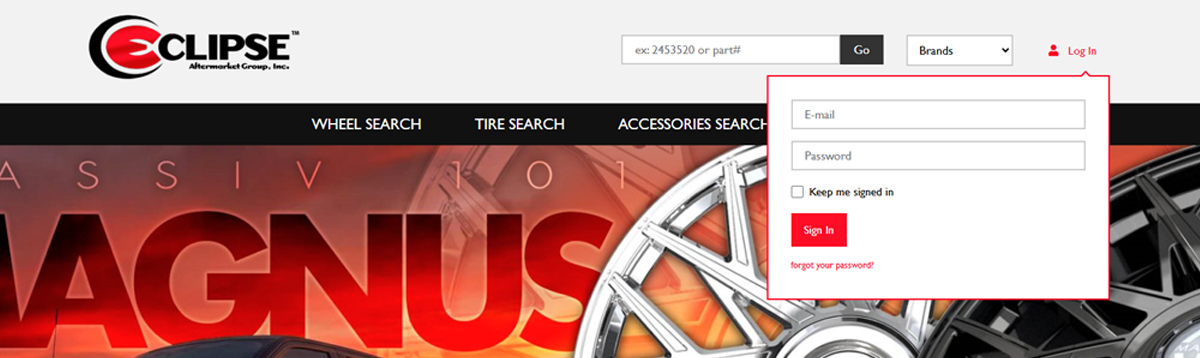
After confirming the email address associated with your account with your salesperson, you can activate your online account by clicking the “Forgot your password?” link on the login screen.
Activation must be completed separately for each warehouse location where you plan to log in and place orders.
You may use the same email address and password for each site.
After initiating the password reset, you will receive an email with a link to create your password. If you do not see the email, please check your spam or junk folder.
Select “Keep me signed in” and you will remain logged in until you log out. Most browsers will also allow you to save your login information to make future logins easier.
Searching and adding to cart
Location and quantity filters – Applying the “4+ only” filter will display only items that have a total stock quantity of 4 or more across all warehouse locations. The “warehouse location” filter will eliminate the items not available to order for that specific warehouse website.
Searching for Tires – You can search for specific tire sizes by entering the size into the search field at the top of the page. Enter only the tire size, for example: 2453520
Searching for Wheels – Search for wheels using the filtered search panel on the left side. Applying more filters will narrow down your search by eliminating the items that do not fulfill your needs.
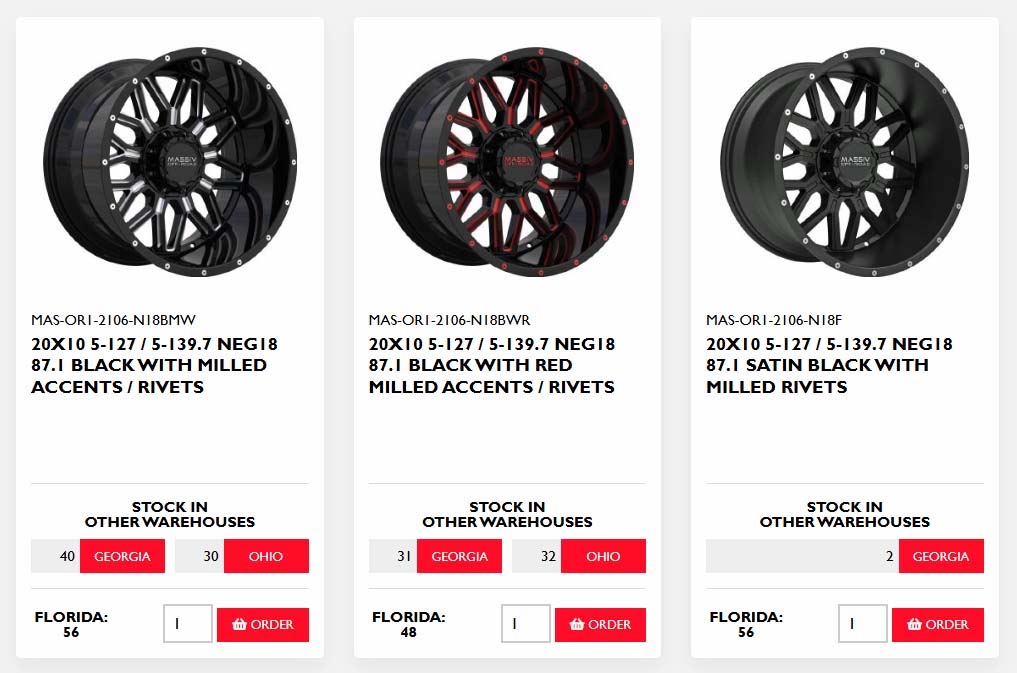
Ordering from other warehouse locations – You are only able to place orders for inventory at the warehouse you are currently logged into. If product is available at another warehouse location, you will see a red box with the location. Selecting the red box redirects you to the product page for that specific warehouse. From there, assuming you have established your login for that site, you can log in and place your order accordingly.
Finalizing your order
Once you have added all of your items to the cart you can proceed to checkout.
Open your cart – Click the cart icon in the upper right corner of the page and select checkout
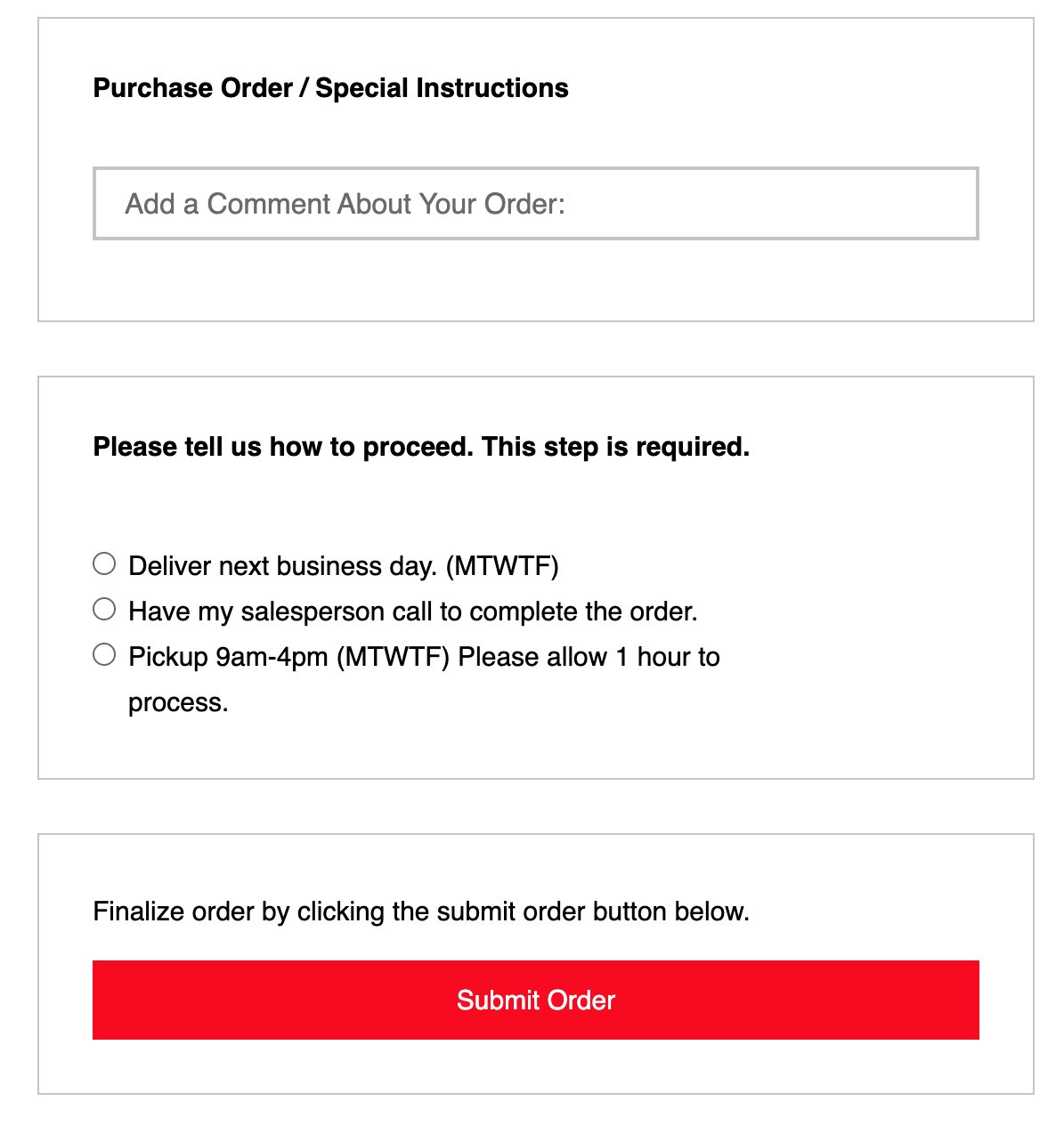
Enter additional info – after confirming your shipping address, you can add a purchase order or any other instructions for us. At minimum we suggest a name in case we need to follow up on your order.
Instructions on how we proceed (Required step) – This will communicate with your salesperson how to proceed with your order.
Click “Submit order” to send us your order. Please note that we cannot see what items are in your cart untill your order is submitted.